
This browser extension is designed to help versions 1.2.01 and newer of Binny work around the recent TekMetric updates that prevent previous versions of Binny from working. Please note that we do not guarantee that this fix will work long-term. For help with the installation process, please reach out to [email protected].
Extension Installation
After completing the v1.2.01 installation/update process, install either the Google Chrome or FireFox extension from the links below.
Links for both Google Chrome and FireFox extensions are also available on the downloads page
FireFox users will need to download the extension as a .zip. Extract the .zip then drag the .xpk file into FireFox.
Opening the TM-Helper browser extension should look like this
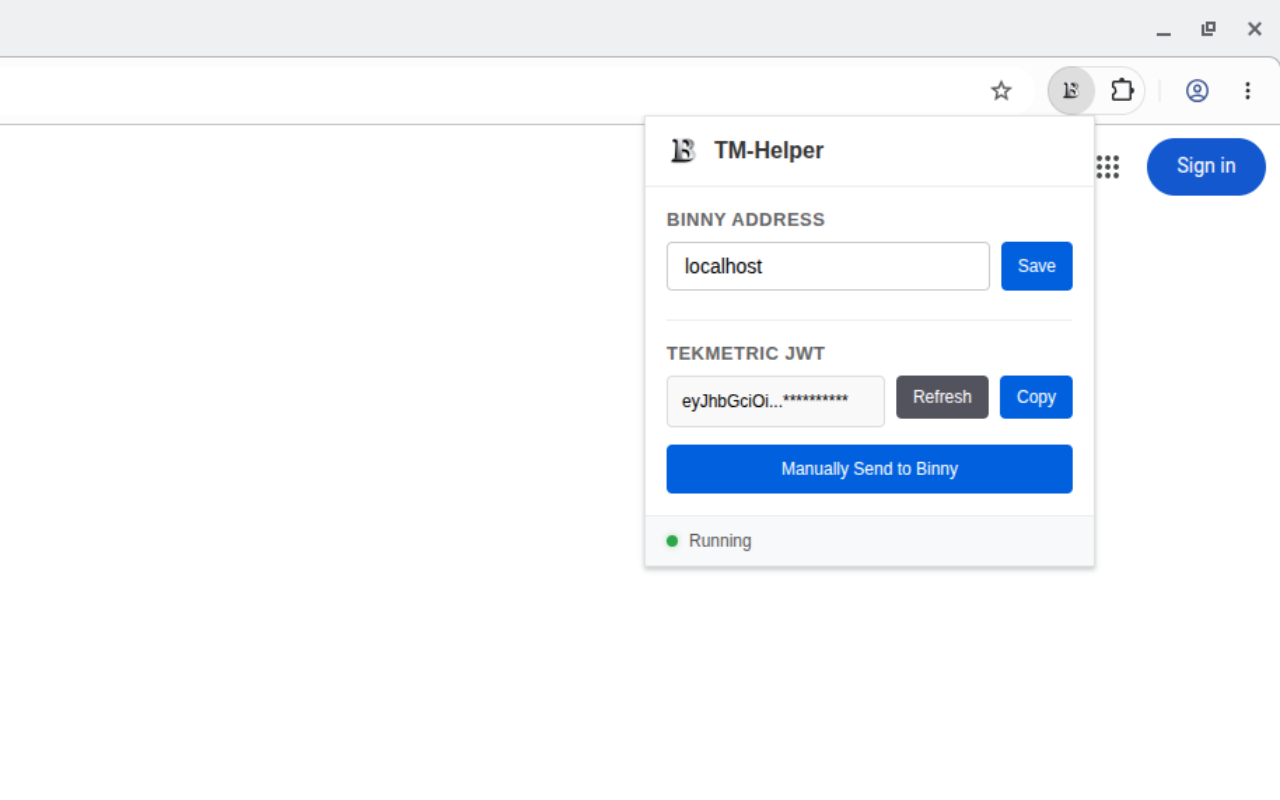
BINNY ADDRESS – This is the network address of the computer running Binny. If the extension is running on the same computer as Binny, this field should be set to localhost or 127.0.0.1
TEKMETRIC JWT – This is the user login token that was assigned to you by TekMetric. This extension sends Binny the JWT token at regular intervals which allows Binny to retrieve orders using your TekMetric account. Please note that this value should be kept as secure and should never be shared with anyone. Platinum Technology staff will NEVER ask for this.
Starting Binny
At this stage, Binny should be updated to version 1.2.01 and the browser extension should be installed.
Check to make sure the TM-Helper extension shows a value in the TEKMETRIC JWT field. If not, make sure you are logged in to TekMetric, and/or click the refresh button.
Now that the TM-Helper extension has a valid token, you can start Binny. If Binny returns the error “TekMetric user token not set. Is the TM-Helper browser extension running?” go back to the extension and click the Manually Send to Binny button then try to start Binny again.
Troubleshooting
There are a handful of other possible errors that Binny could display due to a missing, invalid, or expired token. Binny will display suggestions to resolve these situations. In most cases, the issue can be resolved by re-opening TekMetric, clicking the Refresh button, then clicking the Manually Send to Binny button.
Errors in the extension likely result from a network connection issue. If running the extension on a different device than the one running Binny, make sure to add a rule to your Binny host’s Windows Firewall to allow inbound requests on TCP port 42700 (see Advanced section below).
Advanced
The steps detailed in this section are written for more technically advanced users. If you need help with any of these steps, please contact Binny support ([email protected])
Run TM-Helper extension on a different host from the Binny host
SECURITY NOTE: It is highly recommended that you only run the TM-Helper extension on the same host as Binny. The local Binny API operates over HTTP without SSL encryption and without authentication. This means token updates will be sent across the network in plaintext and could be sniffed if either your Binny or TM-Helper hosts run on a network that unauthenticated users can access (guest network or open wifi network). Additionally, unauthorized users on your network could send requests to Binny that could disrupt Binny’s functionality.
Once the browser extension is installed, you will need to enter the IP address of the computer running Binny. Initially, the browser extension will show an error since Windows firewall blocks inbound connections to the Binny software by default.
On the Binny host, open the Advanced Windows Firewall settings. Click add new inbound rule and follow the wizard to allow inbound connections on TCP port 42700.